Monday, 15 September 2014

Installation of Matlab 2014a FOR FREE

Installation of Matlab 2014a FOR FREE

This tutorial will help the student to install the Matlab 2014a without paying money, so called cracked method.  The pictures and procedure will help you to install Matlab 2014a with no pain.  Follow the instruction carefully.

Download the Matlab 2014a

First of all, you have to download the Matlab 2014a. I will tell you two ways to download the Matlab2014a.  To know about the matlab 2014a features and

1) Download the file, size about 7-8 GB.  Use normal method to download. Click below button to download the file.
2) Second method, through torrent. Search in the torrent “matlab 2014a” . You will find the matlab2014a with no crack. Download torrent file.  Click below button to search the matlab 2014a file.

Installing Matlab 2014a

Extact the iso file. Then, run the setup.exe file.  Follow these below screen shots.


Use this product key:  46403-19269-37827-45833-18217-37677-62658-52045-22004-23534-62999-07597-46142-42066


You can select all products except the License Manager 11.11

You will need the license file at this point. You can download it from license . Rar file contain the read me file and license.dat file. Extract and brows and load the license file.


This progress will take about 30 minutes

Note: In one or two hours. matlab will be installed. It is up to processing power.

Monday, 25 August 2014


Top 10 Facebook Tricks You Must Know

Do you surf facebook for hours? And would like to have some additional functions to your tiny world of friends? Well, if yes then you are at the right place. In our today’s article we would be covering few of the best tricks that will make your facebook lot more efficient and joyous. So, let’s then get started:
1. How to type colorful text for your status or chat
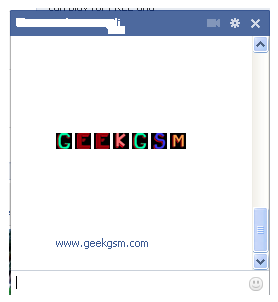
Want to impress your friends with something out of the box? If yes then follow our next steps. For typing any form of text in colorful way just paste following script for each letter: 
[[107015582669715]] = A [[116067591741123]] = B [[115602405121532]] = C [[112542438763744]] = D [[115430438474268]] = E [[109225112442557]] = F [[111532845537326]] = G [[111356865552629]] = H [[109294689102123]] = I [[126362660720793]] = J [[116651741681944]] = K [[115807951764667]] = L [[106596672714242]] = M [[108634132504932]] = N [[116564658357124]] = O [[111669128857397]] = P [[107061805996548]] = Q [[106699962703083]] = R [[115927268419031]] = S [[112669162092780]] = T [[108983579135532]] = U [[107023745999320]] = V [[106678406038354]] = W [[116740548336581]] = X [[112416755444217]] = Y [[165724910215]] = Z
colorful-facebook-status-trick
2. Creating your own chat 
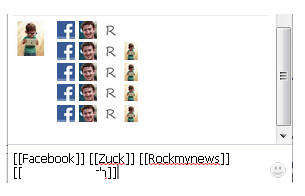
Want to chat with your friend in a different way? Well, you can if you want to. We have a trick by which you talk via pictures. You don’t need to upload them need to type them. For instance you want to show something related to mr.zuck, one of your friends, so, can show his profile pictures and type something with it. Just type the username in this way [[Zuck]] and profile picture would be sent in the chat.
create-your-own-facebook-chat
3. How to upload your pictures from flickr to Facebook 
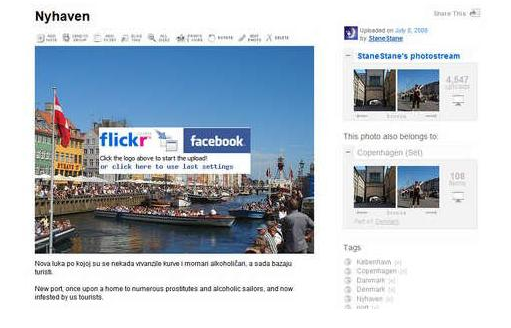
If you have some albums on flickr and want to share them over facebook then your problem would be solved now. You should download flikr2facebook, for this transfer this program will automatically transfer all the albums or photos you want to transfer.
flickr2facebook 4. Scheduling facebook messages
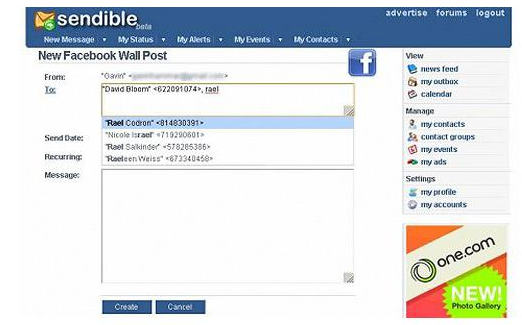
If you are using more than one messengers at a time or want to schedule your facebook messages then you should click here, you would here find a program for scheduling all you message at a single time. It’s fantastic software for people who want to deal people talking from more than one messenger.
sendible 
5. How to hide your facebook status from the friends you want
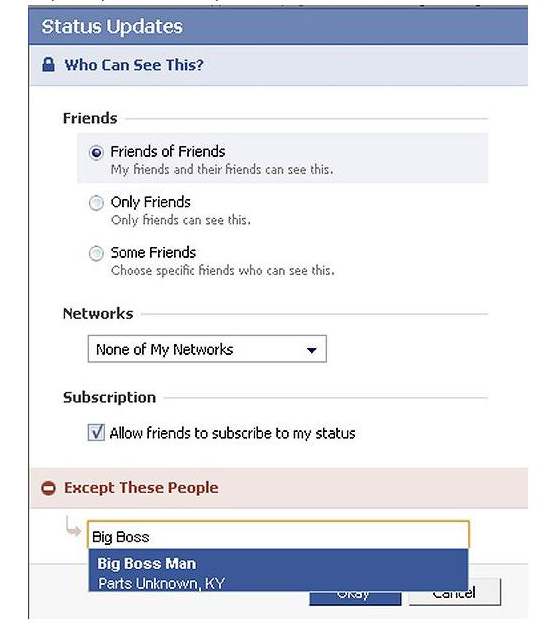
For hiding your status you need to need to change your privacy settings for this you will first go to privacy setting and from these go to profile tab. There you should go for status update setting there a page will open and you can under customize you can name the person you want to hide your status from.
hide-your-facebook-status 
6. Removing unwanted ads on Facebook
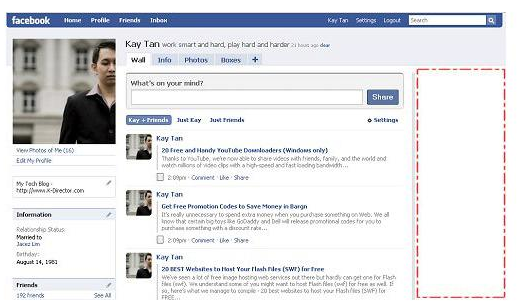
If you want to get rid of ridiculous advertisement on facebook, then you should try Facebook cleaner it removes all the unwanted advertisements which makes your browser slow and makes the browsing faster too.
Remove Facebook ads trick
7. Access your facebook account from your desktop 
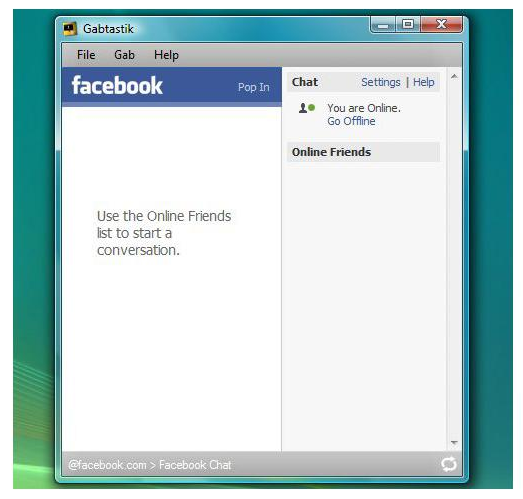
Don’t have time to visit facebook regularly now? Now get your facebook chatting on your desktop simply download Gabtastik and you can chat from your desktop with your friends.
gabtastik-script-fcebook 
8. How to create Quiz on Facebook
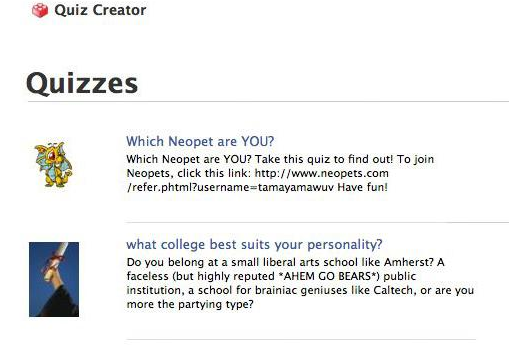
Have any question in your mind? Want to know it from your friend via quiz? Then there is no better place then facebook by going to LOLapps you can get a free quiz generator and have fun with your facebook friends.
Facebook-quiz-creating-tricks
9. How to display offline status to some of your friends
Don’t want to talk to some of your friends while remaining online? Well, you can do it now, it simple to do……….. Just go to your chat box and find a star there click it and go to advanced settings here you in the first write the profile names of the people whom you want to display offline status. As you write the names you would be shown offline in there chat box and originally you would remain online.
10. How to set your status remaining online on firefox
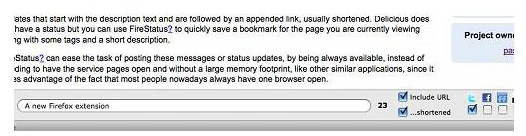
Using multiple social network and don’t have time to set the status regularly then useFireStatus, you can easily set your status with one button click to the leading social media sites. This will bring more efficiency and joy to your browsing experience.Firefox-status-facebook
So what are you waiting for, try these tricks incase they are new for you and enjoy :D 

Thursday, 7 August 2014

Top 10 free PC programs everyone should have

There are millions of free and open source projects available, many of them better than any commercially available product. Below is a short listing of what we think is the best out there, broken down into ten categories.

Antivirus and malware protection

Most PC users realize that they need protection on their computer or may have an installed antivirus program from their computer manufacturer. What most don't realize is that there are free programs that are just as good and in some cases better than the commercial products. Below are our recommendations
Antivirus program: Avast! or AVG
Malware and Spyware protection: Malwarebytes

Backup solutions

There are dozens of free and commercially available backup programs for computers. Unfortunately, many of those backups are stored locally, meaning if your house were to catch fire, get robbed, or if you lost your backup discs all your data would be lost. This is why when dealing with important data we suggest users use online backup services.
Online backup solution: Mozy or Dropbox

Browsers

Although Microsoft Internet Explorer comes pre-installed on Windows computers. There are several excellent free alternatives that everyone should try. These free alternatives can often be faster, have more options, and in many cases be more secure than Internet Explorer.
Internet Browser: Mozilla Firefox or Google Chrome

Compression utility

When downloading files on the Internet you'll eventually encounter a .zip, .rar, or other compressed file. Dealing with these files can be easy with our below free file compression utility.
File compression utility: 7-Zip

Disc ripper and creation utility

Creating an audio or data CD/DVD, ripping the data from an audio CD, or creating a CD from a .ISO file can also be done freely using our below free recommendation.
CD burner utility: CDBurnerXP

E-mail

E-mail is yet another service that can be done freely. Most users today use online e-mail solutions like the one listed below. However, for those still using an e-mail client such as Microsoft Outlook we strongly suggest one or both of the below suggestions.
E-mail client: Mozilla Thunderbird
Online e-mail: Gmail

FTP, SFTP, and SSH Utility

Users who maintain their own web page or need to upload or download files to or from a server have to use an FTP utility or an SSH client. There are many commercial programs capable of doing this but our below free recommendations beats them all.
FTP client: Filezilla
SSH client: Putty

Image editor, paint program, and picture organizer

There are many great free solutions for editing, creating, and organizing your images on your computer. Many of the programs capable of doing these tasks can be several hundred dollars, but all of the below programs are completely free.
Image editor: GIMP
Paint program: Paint.net
Picture organizer: Google Picasa

Multimedia

There are dozens of different multimedia programs with different capabilities and limitations. Below are our top free multimedia programs for watching video files and recording audio.
Audio editing and creating tool: Audacity
Video and DVD Player: VLC and MPC-HC

Office Suite

An Office suite such as Microsoft Office is often one of the most expensive programs that a user can install on their computer. Why install these expensive programs when there are free solutions that are just as good.
Office suite: OpenOffice
Notepad and Source code editor: Notepad++

Basic PC shortcut keys

The below basic shortcut keys are a listing of shortcut keys that will work with almost all IBM compatible computers and software programs. It is highly recommended that all users keep a good reference of the below shortcut keys or try to memorize the below keys. Doing so will dramatically increase your productivity.
Shortcut KeysDescription
Alt + FFile menu options in current program.
Alt + EEdit options in current program
F1Universal Help in almost every Windows program.
Ctrl + ASelect all text.
Ctrl + FOpen find window for current document or window.
Ctrl + SSave current document file.
Ctrl + XCut selected item.
Shift + DelCut selected item.
Ctrl + CCopy selected item.
Ctrl + InsCopy selected item
Ctrl + VPaste
Shift + InsPaste
Ctrl + PPrint the current page or document.
HomeGoes to beginning of current line.
Ctrl + HomeGoes to beginning of document.
EndGoes to end of current line.
Ctrl + EndGoes to end of document.
Shift + HomeHighlights from current position to beginning of line.
Shift + EndHighlights from current position to end of line.
Ctrl + Left arrowMoves one word to the left at a time.
Ctrl + Right arrowMoves one word to the right at a time.

Top 10 keyboard shortcuts everyone should know

Top 10 keyboard shortcutsUsing keyboard shortcuts can greatly increase your productivity, reduce repetitive strain, and help keep you focused. For example, highlighting text with the keyboard and pressing Ctrl + C is much faster than taking your hand from the keyboard, highlighting the text using the mouse, clicking copy from the file menu, and then putting your hand back in place on the keyboard. Below are our top 10 keyboard shortcuts we recommend everyone memorize and use.

Ctrl + C or Ctrl + Insert

Both Ctrl + C and Ctrl + Insert will copy the highlighted text or selected item.

Ctrl + V or Shift + Insert

Both the Ctrl + V and Shift + Insert will paste the text or object that's in theclipboard.

Ctrl + Z and Ctrl + Y

Undo any change. For example, if you cut text, pressing this will undo it. This can also often be pressed multiple times to undo multiple changes. Pressing Ctrl + Y wouldredo the undo.

Ctrl + F

Pressing Ctrl + F opens the Find in any program. This includes your Internet browser to find text on the current page.

Alt + Tab or Ctrl + Tab

Quickly switch between open programs moving forward.
Tip: Press Ctrl + Tab to switch between tabs in a program.
Tip: Adding the Shift key to Alt + Tab or Ctrl + Tab will move backwards. For example, if you are pressing Alt + Tab and pass the program you want to switch to, press Alt + Shift + Tab to move backwards to that program.
Tip: Windows Vista and 7 users can also press the Windows Key + Tab to switch through open programs in a full screenshot of the Window.

Ctrl + Back space and Ctrl + Left or Right arrow

Pressing Ctrl + Backspace will delete a full word at a time instead of a single character.
Holding down the Ctrl key while pressing the left or right arrow will move the cursor one word at a time instead of one character at a time. If you wanted to highlight one word at a time you can hold down Ctrl + Shift and then press the left or right arrowkey to move one word at a time in that direction while highlighting each word.

Ctrl + S

While working on a document or other file in almost every program pressing Ctrl + Ssaves that file. This shortcut key should be used frequently anytime you're working on anything important.

Ctrl + Home or Ctrl + End

Ctrl + Home will move the cursor to the beginning of the document and Ctrl + End will move the cursor to the end of a document.

Ctrl + P

Open a print preview of the current page or document being viewed. For example, press Ctrl + P now to view a print preview of this page.

Page Up, Space bar, and Page Down

Pressing either the page up or page down key will move that page one page at a time in that direction. When browsing the Internet pressing the space bar also moves the page down one page at a time.
Tip: If you are using the space bar to go down one page at a time press the Shift keyand space bar to go up one page at a time.

Friday, 25 July 2014

Finding Ip Address Of A Website Using Command Prompt Or CMD


In this tutorial i will teach you to find Ip Address of any website using Command Prompt or in short CMD. Using IP Address you can find location of the website server and do more stuff. I will demostrate this tutorial with Google but you can use this method to find IP Address of any website like twitter, facebook etc. So lets get started.

How to find IP ?

1. Go to Start > Type CMD and press Enter.
2. Now write Ping followed by website URL whose IP you want to find.
finding ip adddress of website

3. It will take less then a second and come up with the results as shown below.
finding ip adddress of website

Downloading Torrent Using Internet Download Manager


Downloading Torrent Using Internet Download Manager
Hello friends, today i will show you the way to download torrents with Internet Download Manager. Torrent is tiny file with .torrent extension which allows you to download huge amount of data. We use torrents to download various stuffs like movies, games, software package and plenty of different things. you'll transfer torrents from several website.  The transfer speed for torrents depends on seeds it has. It will make difficult for you to download files with very low or no seed counts. However with the assistance of this trick you'll be able to download torrent file with IDM. This tool can be really helpfull when you want to download file that has very low seeds. IDM is the quickest file transfer manager on the internet market. So lets begin!

How To Transfer Torrent With IDM

1. First download the torrent file with .torrent extension which you wish to download from the internet directly without any torrent client like utorrent.
Downloading Torrent Using Internet Download Manager

2. Now open zbigz.com and you will land on its homepage.
3. Then Click on upload Torrent and browse your torrent to transfer and click on Go.
4. Then it will ask you for Free or Premium service, choose Free to proceed further.
5. It will take some time to cache your file. Once the caching is done, click on transferbutton to download your file as shown below.
Downloading Torrent Using Internet Download Manager
6. You should have internet download manager installed on your computer so that download start inside IDM. If you don't have IDM don't worry it will download directly.

Note: If you decide on to use Free transfer then you wont be able to transfer file of more then 1 GB 

AN OFFICER AND A SPY – ROBERT HARRIS SUMMARY WRITTEN BY-SURYA PRAKASH PATTANAYAK This novel was written by Robert Harris. It has w...